
OmniVoice Video to Text:
transcribe videos into editable text
Upload a video and turn spoken content into a clean transcript. Use it for subtitles, captions, show notes, blog drafts, searchable descriptions, and content repurposing.
OmniVoice Video to Text
Upload a video, choose transcript options, and generate editable text.
Set to Auto for automatic language detection.
Transcribe to the source language or translate to English.
Include segment start times when the transcript supports it.
Credit rule1 credit per 2 seconds of video, rounded up (minimum 1 credit).
OmniVoice transcript output
Video transcript result
Your video transcript will appear here
Upload a video on the left, then convert it into editable text.
Why OmniVoice Video to Text
Make every OmniVoice video transcript searchable, editable, and ready to repurpose
Most videos hide their best ideas inside the timeline. OmniVoice turns those spoken moments into structured text you can scan, edit, translate, quote, publish, and share across your content workflow. Instead of treating a video as one locked file, you get a transcript that can power captions, SEO pages, blog drafts, show notes, summaries, and internal documentation.
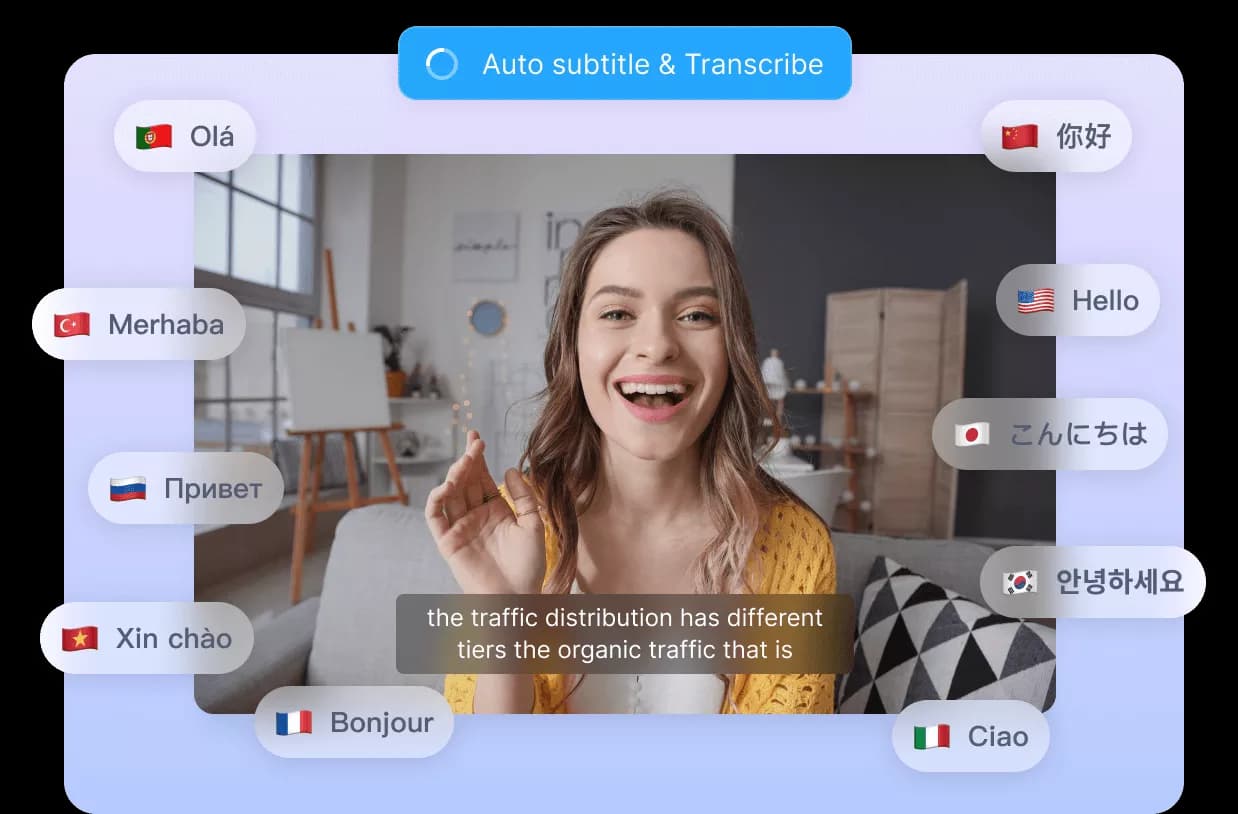
OmniVoice creator captions
Turn YouTube videos, podcast clips, webinars, lessons, interviews, and product demos into accurate transcript copy. Use the text as the foundation for captions, subtitles, accessibility notes, and viewer-friendly video descriptions without replaying the same clip line by line.
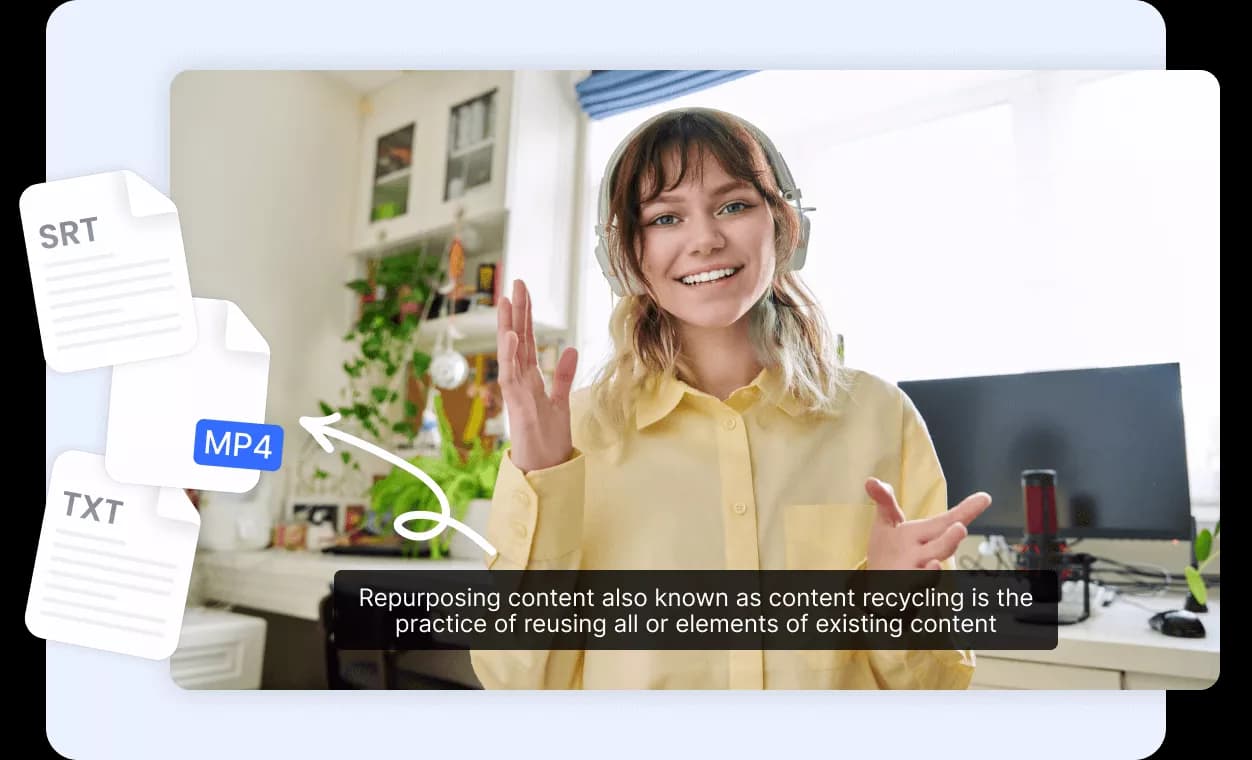
OmniVoice content repurposing
A single recording often contains several reusable ideas. Convert long-form video into source text for blog drafts, newsletters, show notes, quote cards, social captions, and internal summaries so your team can reshape the message for every channel faster.

OmniVoice SEO discovery
Spoken ideas are hard to search until they become text. Publish transcripts beside videos, reuse key sections in page copy, and give Google, YouTube, TikTok, and your own site more context around what the video actually covers.
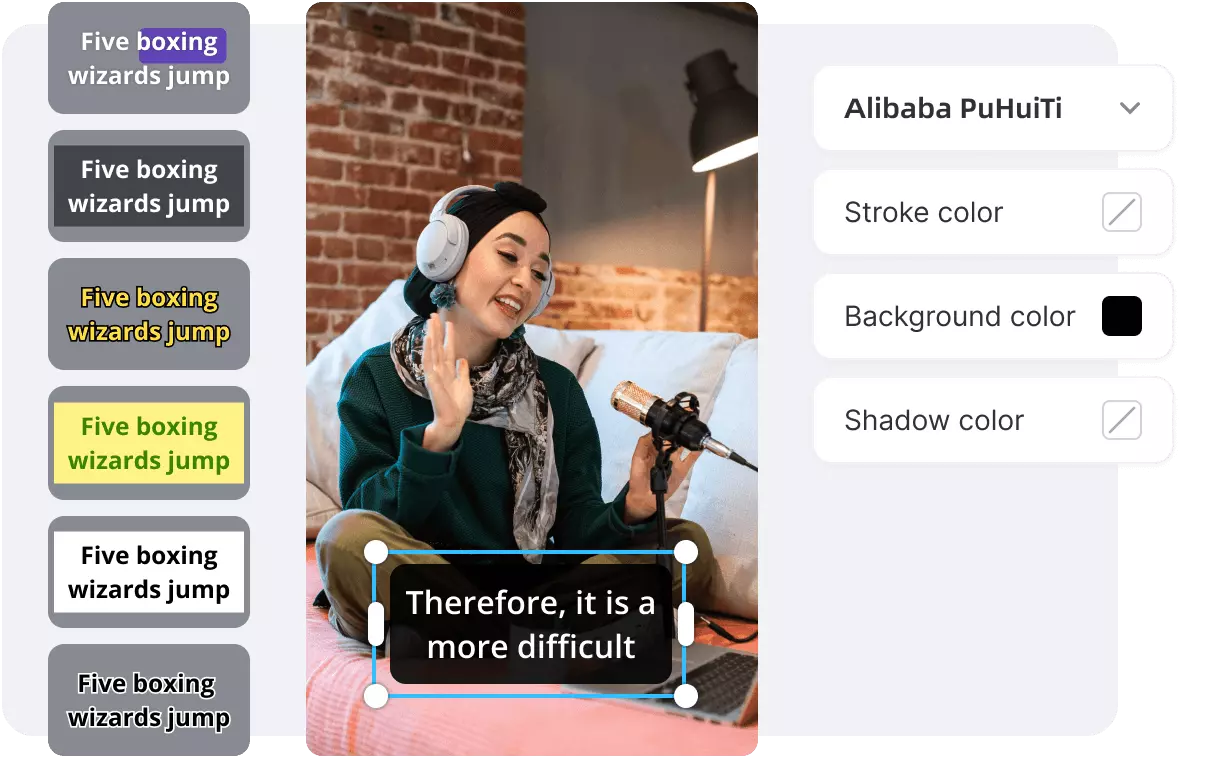
OmniVoice multilingual review
Work with global recordings without guessing the language first. Let OmniVoice detect the spoken language, transcribe the original speech, or translate the transcript into English for review, editing, documentation, and cross-team handoff.
OmniVoice workflow
Convert video to text with OmniVoice in three steps
The workflow mirrors the best video-to-text pages: upload, transcribe with AI, then export text for publishing.
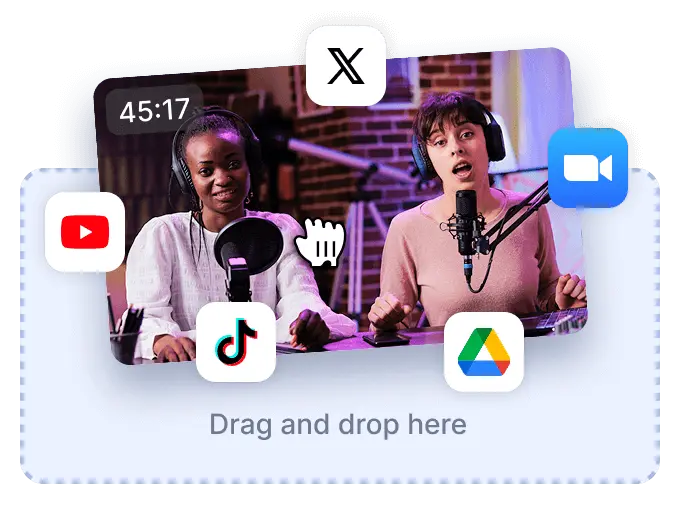
Upload video to OmniVoice
Drop in an MP4, MOV, WebM, MKV, AVI, or M4V file and confirm the detected duration.

Choose OmniVoice transcript options
Set language to auto, choose transcribe or translate, and enable timestamps when you need segment timing.
Download OmniVoice transcript text
Review the generated transcript, copy it, or download the result as a TXT file for editing and publishing.
OmniVoice for repurposing
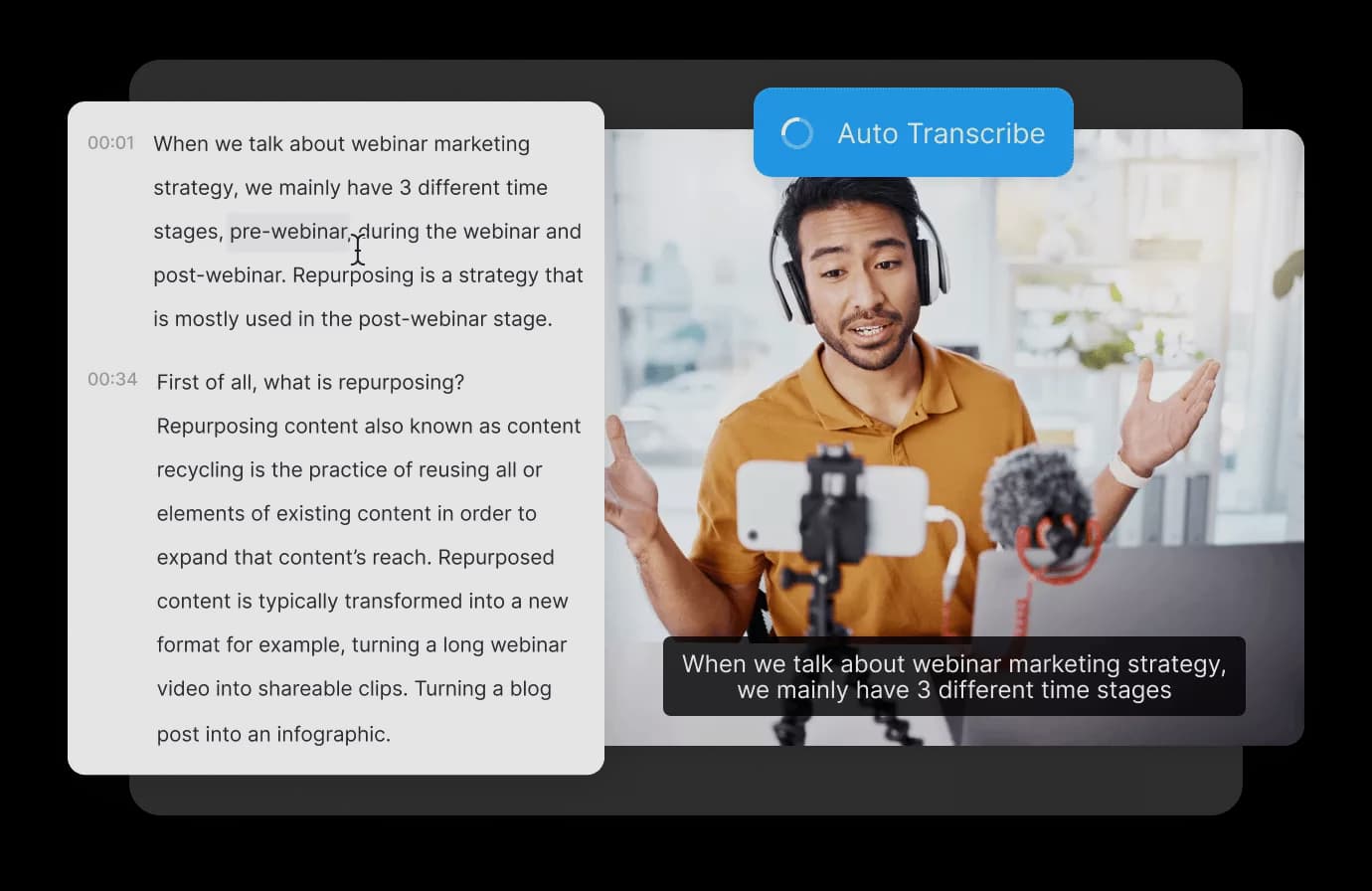
Turn Videos into Transcripts, Subtitles & SEO Content
Upload once, get a transcript, then reuse the words across your content pipeline without rewatching the whole video.
OmniVoice Pricing for Video to Text & AI Voice
Use credits for video transcription, Speech to Text, TTS, Voice Cloning, Voice Design, and audio generation. Credits never expire.
No card required
No credit card. Prepare a script, sign up, and use your hosted trial credits.
- 2 hosted trial credits
- ≈ 200 characters
- ≈ 16 seconds of speech
- All 646 languages
- Voice Cloning
- Voice Design
- MP3 / WAV export
- No credit card required
Best first purchase
Perfect for short videos, ads, and trying things out.
- 800 credits
- ≈ 80,000 characters
- ≈ 1.8 hours of speech
- All 646 languages
- Voice Cloning
- Voice Design
- MP3 / WAV export
- Hosted generation — no GPU setup
- Email support
- Credits never expire
Built for regular creators
The pick for podcasters, YouTubers, and small studios.
- 3,000 credits
- ≈ 300,000 characters
- ≈ 6.7 hours of speech
- $0.010 / credit
- All 646 languages
- Voice Cloning
- Voice Design
- Use Latest Voice Model
- MP3 / WAV export
- Hosted generation — no GPU setup
- Email support
- Credits never expire
Best per-credit value
Built for audiobook narrators, course creators, and content studios.
- 6,000 credits
- ≈ 600,000 characters
- ≈ 13.3 hours of speech
- $0.008 / credit
- All 646 languages
- Voice Cloning
- Voice Design
- Use Latest Voice Model
- MP3 / WAV export
- Hosted generation — no GPU setup
- Priority generation
- Email support
- Credits never expire
One-time hosted credits • No subscription required
OmniVoice FAQ
OmniVoice Video to Text questions, answered
Everything you need to know before converting a recording: supported workflows, timestamp behavior, translation options, credit usage, and how to reuse the transcript after export.
Yes. Upload your video directly in the browser, choose the spoken language or keep Auto detection on, then start the AI transcription task. When the task finishes, OmniVoice displays the transcript in an editable text panel so you can review it, copy it, or download it as a TXT file for captions, notes, articles, and documentation.